Do People Still Use Cricuts? The Current State of Crafting
Yes, millions of hobbyists and small business owners do still use cricuts today for crafting and professional projects. The popularity of these machines remains high because they allow users to cut, score, and draw on a wide variety of materials with high precision. If you’re a casual crafter, the entry-level models suffice; if you run a business, you’ll need the faster, heavy-duty machines.
Why people still use Cricuts
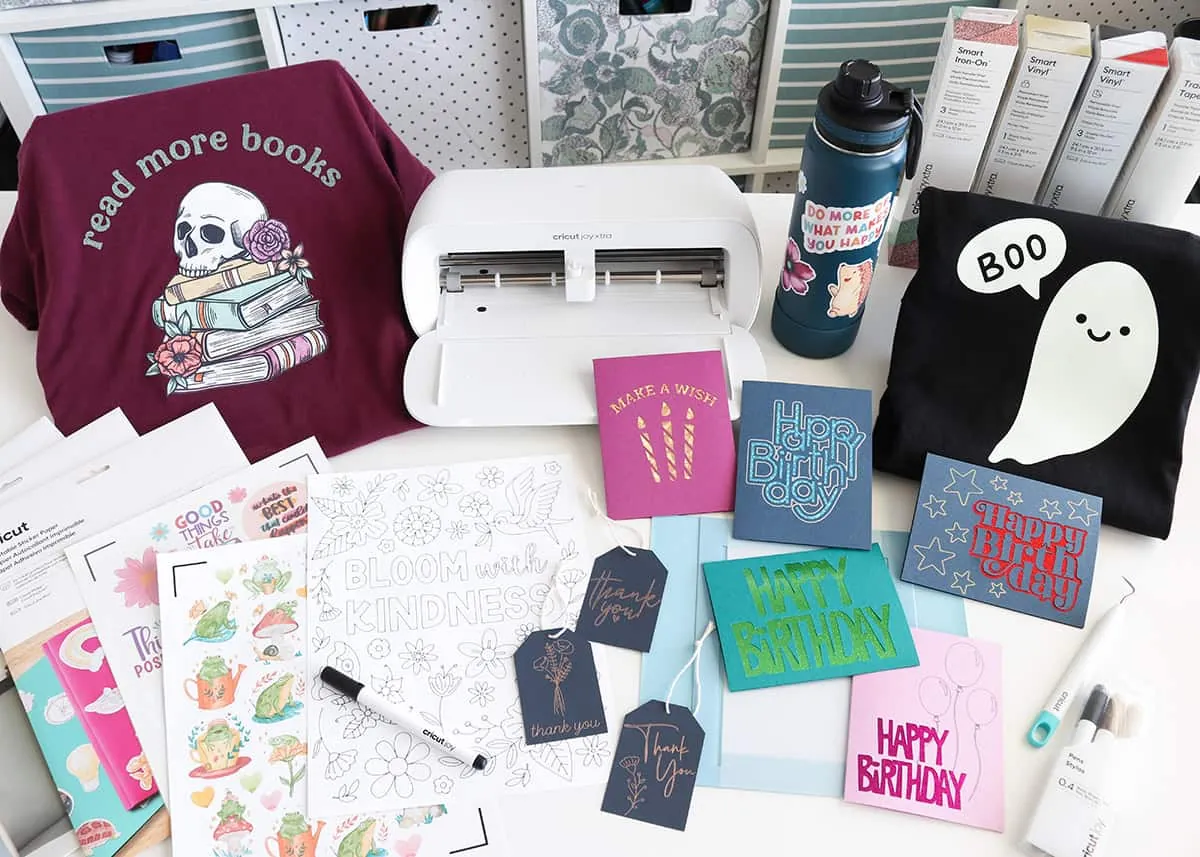
The machine works by using a motorized blade or stylus to follow a digital path sent from a computer or tablet. This technology allows for the creation of custom stickers, iron-on vinyl for shirts, and intricate paper art that would be nearly impossible to cut by hand. Because the software handles the complex geometry of the designs, you can focus on the creative assembly of your projects.
Most beginners mistake the machine for a printer, expecting it to handle thick materials like heavy chipboard or leather without adjustment. If your material is thicker than a standard piece of cardstock, you must switch to a deep-point blade and adjust your pressure settings to at least 250 grams of force. Failing to calibrate the depth leads to jagged edges and wasted material.
The ecosystem surrounding these tools keeps them relevant. You can find thousands of pre-made digital files, which removes the need to be an expert in graphic design software. If you want to create your own designs, the provided software is intuitive enough for beginners while offering enough depth for advanced users to manipulate paths and layers.
The longevity of these machines is supported by a large community that shares tips and troubleshooting advice. If you encounter a connection error, check your firmware version before reinstalling the software. Most sync issues stem from outdated drivers rather than hardware failure.
By checking the community forums first, you avoid the common trap of replacing a perfectly functional machine due to a simple software glitch. If your cuts are dragging, replace the housing blade immediately; a dull edge costs more in ruined vinyl than the price of a new tip.
Versions and Capabilities
| Machine Type | Best For | Typical Material |
|---|---|---|
| Joy | Small labels | Paper/Vinyl |
| Explore | Home decor | Cardstock/Vinyl |
| Maker | Heavy projects | Wood/Leather |
| Venture | Bulk production | Wide vinyl |
The Joy is a travel-sized tool restricted to 4.5 inches in width. Use this for quick, one-off labels or cards. If you need to cut more than three items at once, you’ll quickly outgrow its small footprint.
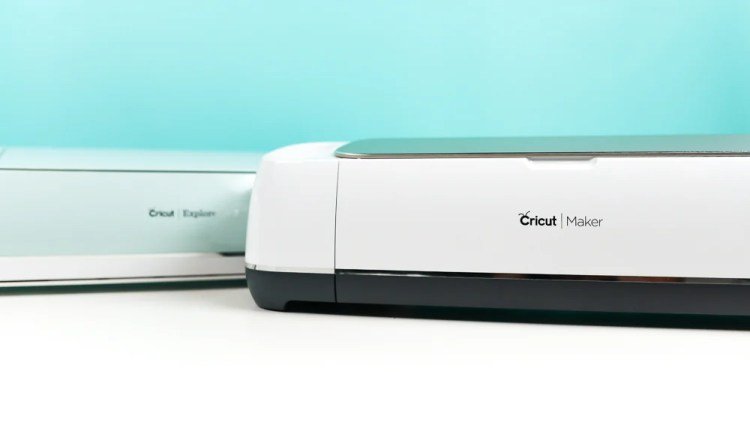
Choose the Explore series for standard 12-inch projects like wall decals or custom apparel. It handles cardstock perfectly, but it lacks the downward pressure required for dense materials.
The Maker series features a 10-fold increase in cutting force over the Explore. This allows you to slice through balsa wood or heavy leather without stalling the motor. If your design requires a knife blade or rotary tool, the Maker is the only viable choice.
Reserve the Venture for commercial workflows. It operates at twice the speed of other models and accommodates 25-inch wide material. Avoid this machine if you lack a dedicated 3-foot workspace to manage the long loading path.
How to Operate Your Machine Successfully

Place your material onto the adhesive cutting mat, pressing firmly from the center outward to eliminate air bubbles. Even a tiny wrinkle can cause the blade to snag, ruining both your design and the mat’s surface.
Load the mat by aligning it against the left guide rail. Press the load button until the rollers grip the edge firmly. If the mat feeds in crooked, hit the unload button immediately to reset it. A skewed mat will cause the machine to cut outside the designated area.
Select your material type in the software to calibrate the blade pressure. If you’re cutting heavy cardstock, choose the “more” pressure setting to ensure a clean through-cut. For delicate vinyl, use the “less” setting to avoid cutting through the backing paper.
Send your design and wait for the machine to finish the entire path. Don’t force the mat out early, as this skips the final registration marks. Press the unload button only after the machine stops moving and the light turns off.
When removing your project, flip the mat face down and peel the mat away from the material. This keeps your design flat and prevents curling.
Common Mistakes That Ruin Projects
Using a dull blade for thick materials causes frayed or jagged edges that ruin the final aesthetic. Replace your blade every 50 to 75 cuts on heavy cardstock or vinyl to maintain a clean finish. If you notice the machine struggling to pierce the surface, stop immediately to avoid tearing your design.
Failing to calibrate the machine leads to misaligned cuts that miss your printed registration marks. Run a calibration test every time you move the machine or update your software. A shift of even one millimeter will cause your designs to look unprofessional.
Overloading the mat with too much material forces the rollers to strain, causing the machine to jam or skip its path. Leave at least a half-inch margin around the edges of your media. If the material curls at the corners, use masking tape to secure it. This prevents the blade from catching and ruining the entire sheet.
Related guides
- Best Sewing Machine for Fleece 2026: Top Picks for Easy Crafting
- How to Sewing Machine Stardew: Ultimate Guide to Master Crafting
- Best Sewing Machine for Drapery 2026: Top Picks for Quality Crafting
Frequently asked questions
Can I use a cricut without an internet connection?
You can use the machine offline, but you must first download your design files while connected to the internet. The desktop version of the software allows for offline work, but it doesn’t support all features like cloud-based project saving. Always sync your projects before you disconnect to ensure your progress is saved locally.
How long does a cutting blade last?
A standard fine-point blade lasts for approximately 500 to 1,000 minutes of cutting time depending on the density of your materials. You’ll know it’s time to replace the blade when you notice the edges of your cuts are no longer clean or if the machine starts dragging through the material instead of slicing it cleanly.
Is it safe to leave the machine running unattended?
You should never leave the machine running completely unattended because a material jam could cause the motor to overheat or the blade to damage the mat. While the machine is designed to stop if it hits a major error, a small jam might go unnoticed, potentially ruining your material or causing the machine to work harder than necessary.
What happens if the blade gets stuck?
The machine will usually stop its movement and blink a warning light if the blade becomes stuck or encounters too much resistance. When this happens, press the stop button immediately and check the path for debris or incorrect material settings. Never try to pull the mat out by force while the machine is still trying to move.
Does it matter which material I choose in the software?
It matters because the software automatically sets the blade pressure and depth based on your selection to prevent the blade from cutting through your mat. If you choose a setting for thick cardboard while using thin paper, the blade will likely cut all the way through the mat, which ruins it for future projects.
How often should I clean the machine rollers?
You should wipe the rollers with a lint-free cloth every 20 to 30 hours of use to prevent dust from affecting the grip. If you notice the mat is slipping or not feeding straight, it’s a sign that the rollers have collected too much debris and need a quick cleaning to restore their traction.
Conclusion
The decision to keep using these machines often comes down to the frequency of your creative projects and the time you want to save on manual cutting. If you enjoy making personalized gifts or running a small craft business, the efficiency gained from digital automation is well worth the investment. Always check the official documentation for your specific model to ensure you’re using the correct blades and mats for your intended materials.
{“@context”:”https://schema.org”,”@type”:”FAQPage”,”mainEntity”:[{“@type”:”Question”,”name”:”Can I use a cricut without an internet connection?”,”acceptedAnswer”:{“@type”:”Answer”,”text”:”You can use the machine offline, but you must first download your design files while connected to the internet. The desktop version of the software allows for offline work, but it doesn’t support all features like cloud-based project saving. Always sync your projects before you disconnect to ensure your progress is saved locally.”}},{“@type”:”Question”,”name”:”How long does a cutting blade last?”,”acceptedAnswer”:{“@type”:”Answer”,”text”:”A standard fine-point blade lasts for approximately 500 to 1,000 minutes of cutting time depending on the density of your materials. You’ll know it’s time to replace the blade when you notice the edges of your cuts are no longer clean or if the machine starts dragging through the material instead of slicing it cleanly.”}},{“@type”:”Question”,”name”:”Is it safe to leave the machine running unattended?”,”acceptedAnswer”:{“@type”:”Answer”,”text”:”You should never leave the machine running completely unattended because a material jam could cause the motor to overheat or the blade to damage the mat. While the machine is designed to stop if it hits a major error, a small jam might go unnoticed, potentially ruining your material or causing the machine to work harder than necessary.”}},{“@type”:”Question”,”name”:”What happens if the blade gets stuck?”,”acceptedAnswer”:{“@type”:”Answer”,”text”:”The machine will usually stop its movement and blink a warning light if the blade becomes stuck or encounters too much resistance. When this happens, press the stop button immediately and check the path for debris or incorrect material settings. Never try to pull the mat out by force while the machine is still trying to move.”}},{“@type”:”Question”,”name”:”Does it matter which material I choose in the software?”,”acceptedAnswer”:{“@type”:”Answer”,”text”:”It matters because the software automatically sets the blade pressure and depth based on your selection to prevent the blade from cutting through your mat. If you choose a setting for thick cardboard while using thin paper, the blade will likely cut all the way through the mat, which ruins it for future projects.”}},{“@type”:”Question”,”name”:”How often should I clean the machine rollers?”,”acceptedAnswer”:{“@type”:”Answer”,”text”:”You should wipe the rollers with a lint-free cloth every 20 to 30 hours of use to prevent dust from affecting the grip. If you notice the mat is slipping or not feeding straight, it’s a sign that the rollers have collected too much debris and need a quick cleaning to restore their traction.”}}]}